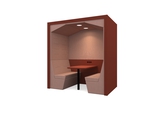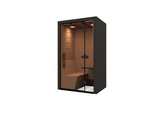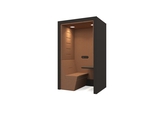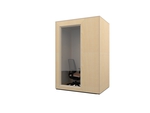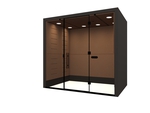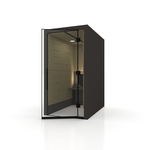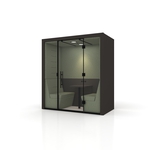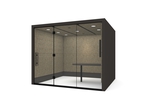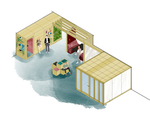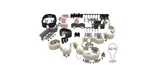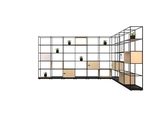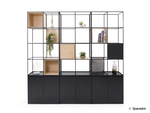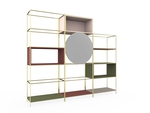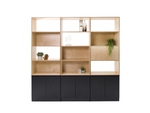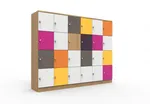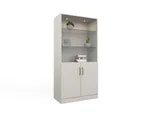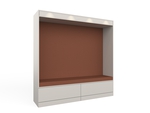


A layout replaces your current design. You can keep building on it afterwards.
Build Your Design
Build Your Design
Pick a module below, then click a + to add it there. A + only shows where it fits. Click the empty floor to start a new run.
Pick a module below, then click a + between two modules to put it in there. The rest of the run moves along.
Pick a module below, then click a module in your design to swap it.
Click a module to remove it. Taking one out of the middle closes the gap, where there is room.
Click a run to pick it up, R turns it, click again to put it down. Bring one of its ends near an open end or opening and it turns and snaps on, like a new module. Esc cancels.
Turn (R)
0°
Clear all
Choose Materials
Choose Materials
Multi-colour Mode
Off: one fabric for every module. On: pick a fabric, then click modules to colour them.
Materials
Moving around your design
Turn it — hold the left mouse button and drag.
Move it — hold the right mouse button and drag.
Zoom — roll the mouse wheel.
Plan — switch to the drawing view top left to see it from above, with dimensions.
Got it
Building with runs
Choose what a click does: Add, Insert, Swap, Remove or Move.
In Add, a + means "add the module you picked here" - at the end of a run, or against the side of a Colonnade, Cloister or Niche. In Insert, the + sit between modules.
A piece added at a + always meets the arch the right way round. To curve the other way, use the other curve: a Sweep turns one way, an Inverse Curve the other. R turns a new run.
The label next to your pointer always says what a click will do.
Got it
Show more
Aeonica
Quote Me
Save for Later
To save to MySpacestor please sign in to your account